
The documented way to slow down time in the Nivalis Nights launch build is the unofficial Nivalis Slow Days mod. It changes the natural day-night clock without slowing the whole game. You can choose Half Speed for days that last twice as long, Quarter Speed for four-times-longer days, or Eighth Speed for eight-times-longer days.
A native day-length control has not been verified for the launch build. Slow Days is a Windows-only, unofficial solution that requires the correct BepInEx 6 IL2CPP loader. It was developed for Steam build 25603526, and later game updates may require a compatible mod update.
Back up your saves before installing it. Install only one speed version, and remember that the mod changes the natural clock rather than every system that can advance time.
Understand what Slow Days changes
Slow Days reduces the rate at which the ordinary in-game day-night clock advances. It leaves the global game speed unchanged, so it is intended to give you more real time to walk around, manage your business, explore districts, or watch the city without making character movement and the rest of the simulation run in slow motion.
That distinction matters because two very different problems can look like a request to slow down time:
- If the clock advances normally but the day feels too short, Slow Days addresses that specific clock rate.
- If your character, pedestrians, and the entire world move slowly and then suddenly jump forward, that is abnormal game behavior rather than the intended result of this mod.
- If time changes because you sleep or encounter a scripted jump, the mod does not promise to stretch that jump by the selected multiplier.
- If a business or quest depends on reaching a particular in-game time, it will generally take more real time for the natural clock to reach that moment.
The mod also retains the game’s existing pause checks. It does not add a hotkey, an in-game configuration screen, or a new pause system. Once the plugin is installed correctly, its selected rate applies automatically.
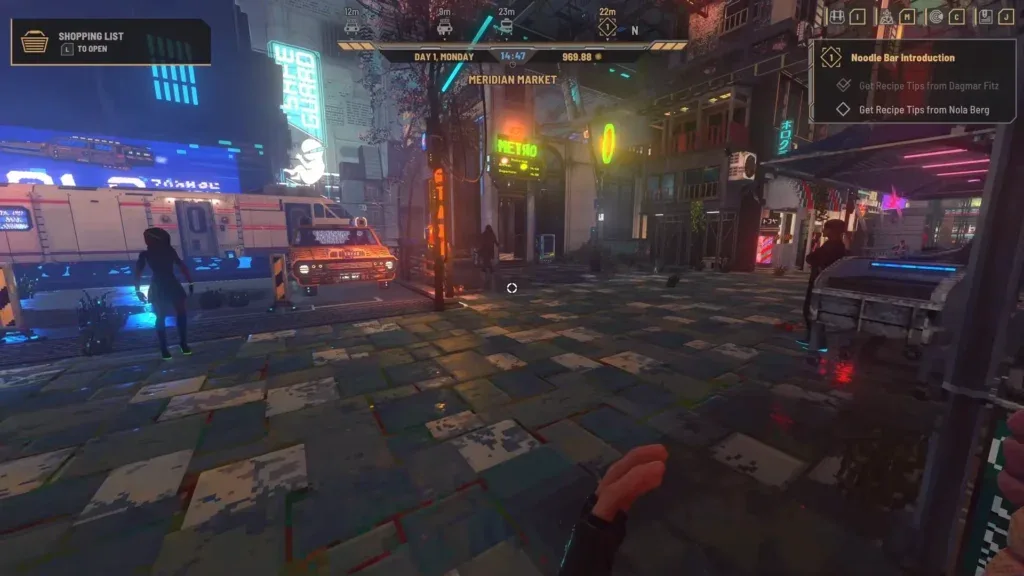
Use the HUD clock as your visible reference when checking the result. Test it during ordinary, unpaused play rather than while a menu, dialogue, sleep sequence, or scripted transition is controlling time.
Choose the right clock speed
All three downloads use the same plugin filename, so you must choose one version rather than combining them. The labels describe the remaining clock speed and the corresponding increase in day and night length.
| Slow Days version | Natural clock rate | Approximate day and night length | Best starting point |
|---|---|---|---|
| Half Speed | 50% | 2 times as long | A moderate extension that preserves more of the original pace |
| Quarter Speed | 25% | 4 times as long | A substantial extension for longer exploration and business sessions |
| Eighth Speed | 12.5% | 8 times as long | A very long day for players who want minimal pressure from the natural clock |
Half Speed is the most conservative choice. It gives you twice as much real time before the natural clock reaches the same in-game hour, while keeping the city’s movement and interaction speed unchanged. It is also the variant reported as used in the live game alongside the Nivalis Tracked Quests HUD mod.
Quarter Speed is a larger adjustment. It may suit a player who wants to combine business tasks with exploration during one in-game day, but clock-based events will also take four times as long to arrive in real time when the natural clock is responsible for reaching them.
Eighth Speed is the strongest option. It can remove much of the pressure created by the ordinary clock, but it also makes an event scheduled for a later hour take much longer to reach through normal play. Choose it because you want an eight-times-longer natural day, not because you expect every quest, business system, sleep action, or travel transition to be rebalanced around it.
Quarter Speed and Eighth Speed passed the mod author’s automated rate, repeated-update, pause, direct-jump, and cleanup checks. However, the mod author reports that those two variants had not yet been tested separately in the live game. That makes Half Speed the better first choice if you want the variant with the clearest reported live-game use.
Back up your save and check the requirements
Close Nivalis Nights before changing any files. The mod author instructs players to back up saves from this location:
%USERPROFILE%\AppData\LocalLow\Ion Lands\Nivalis Nights
Copy the contents to a separate backup location that you can identify later. Nivalis Nights autosaves at the end of each day and also supports manual saving from the Pause Menu, but a manual save is not a substitute for copying the files before adding an unofficial loader and plugin.
Slow Days requires all of the following:
- The Windows 64-bit version of Nivalis Nights.
- BepInEx
6.0.0-be.788+5b766a3forUnity.IL2CPP-win-x64. - One Slow Days speed download: Half Speed, Quarter Speed, or Eighth Speed.
- The game folder that contains
Nivalis Nights.exe.
Do not substitute BepInEx 5 or a Mono package. The mod author’s instructions specifically require the BepInEx 6 IL2CPP Windows x64 loader. BepInEx is a separate download from the Slow Days plugin.
The plugin was developed against Steam build 25603526 with Unity 2020.3.44f1. That does not guarantee compatibility with every later build. If Nivalis Nights has updated since the plugin was released, treat a new problem as a possible version mismatch and check the build information before repeatedly reinstalling files.
Install one Slow Days version
Follow these steps with the game closed:
- In Steam, right-click Nivalis Nights and select Manage > Browse local files.
- Confirm that the opened folder contains
Nivalis Nights.exe. This is the game folder used by the mod author’s installation instructions. - If the required BepInEx loader is not already installed, extract its ZIP into that folder.
- Check that the
BepInExfolder,dotnetfolder,winhttp.dll, anddoorstop_config.inisit besideNivalis Nights.exe. - If you already use the mod author’s Tracked Quests HUD with this same loader, the mod author’s instructions say to skip reinstalling BepInEx.
- Download exactly one Slow Days variant from the mod’s Files tab.
- Extract that variant into the same game folder and allow its
BepInExfolder to merge with the existing one. - Confirm that the plugin ends up at
BepInEx\plugins\NivalisSlowDays\NivalisSlowDays.dll. - Launch Nivalis Nights through Steam and load your save.
The first BepInEx launch may take longer because it can download matching libraries and generate bindings. A slower first startup is therefore not enough by itself to conclude that the game has frozen or that installation failed.
Do not install multiple variants together. Every variant uses NivalisSlowDays.dll, and the author explicitly instructs players not to keep extra copies or rename the DLLs to make them coexist. Multiple clock-changing plugins may conflict or combine their effects, making the actual multiplier harder to diagnose.
Verify the new clock rate
Test the installation during ordinary, unpaused gameplay. Do not measure while a menu or dialogue is open, while the character is sleeping, or during a scripted time jump. Those situations either invoke pause behavior or use paths that are not the same as the natural clock update you are trying to verify.
At the inspected default rate, the mod author gives these practical checks:
- With Half Speed, one in-game minute should take about 2 real seconds.
- With Quarter Speed, one in-game minute should take about 4 real seconds.
- With Eighth Speed, one in-game minute should take about 8 real seconds.
Watch several in-game minutes instead of judging the result from a single clock change. A longer observation makes it easier to distinguish the selected rate from a momentary pause, transition, or distraction while timing.
The mod should not make walking, NPC animation, or the whole world move at half, quarter, or eighth speed. Its purpose is to slow the natural day-night clock while leaving global game speed unchanged. If every visible action is slow, you are likely dealing with a separate performance or timing problem.
You can also inspect BepInEx\LogOutput.log. The mod author’s troubleshooting guidance says to look for entries containing Nivalis Slow Days and Clock active. If you need to report a problem, preserve the relevant log entries and record the game build, chosen speed, and other installed mods.
Account for travel, sleep, and scheduled events
A longer natural day gives you more real-world time between ordinary clock ticks, but it is not a universal time multiplier. Slow Days leaves direct sleep and scripted time jumps on their original paths. The mod author also states that sleep, travel, and save-and-reload gameplay checks were not a completed test set.
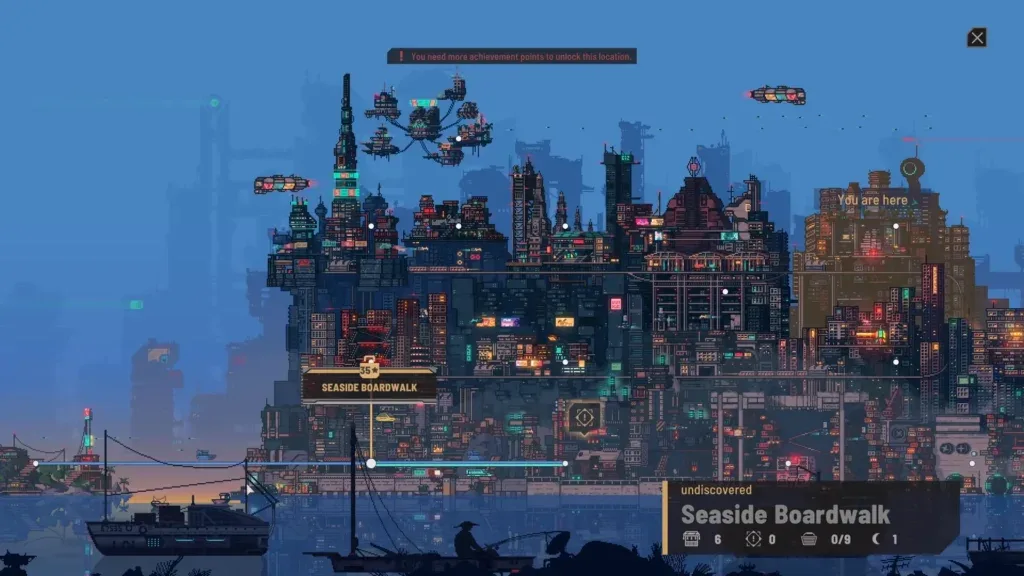
Treat district travel as something to verify in your own current build rather than assuming it will always consume exactly two, four, or eight times less of your usable day. The same caution applies when loading a save immediately before or after a transition. The mod’s automated checks support its intended natural-clock rates, but they do not turn every uncompleted gameplay scenario into a confirmed behavior.
Events connected to a particular in-game hour will take longer to reach in real time when you wait for the slowed natural clock. For example, selecting Eighth Speed means a later clock hour may require a long real-world wait if no supported game action advances time directly. This is the tradeoff for gaining much more time to explore or work before the clock reaches that hour.
The mod does not separately rebalance business systems or quest schedules. Avoid assuming that wages, stock consumption, customer flow, quest availability, or other systems have been proportionally redesigned. Slow Days changes the clock rate; it does not promise to rebalance every time-sensitive mechanic.
A practical approach is to begin with Half Speed, play through normal business work and at least one district transition, and observe whether the resulting pace suits your routine. Move to Quarter or Eighth Speed only if you still want a longer natural day and accept the additional real-time wait for clock-based events.
Change to another speed safely
Because all variants share the same DLL name, changing the rate is a file replacement rather than an in-game setting change.
- Save your game and close Nivalis Nights.
- Return to
BepInEx\plugins\NivalisSlowDays. - Replace the existing
NivalisSlowDays.dllwith the DLL from the one speed variant you now want. - Make sure there is still only one copy of the plugin.
- Launch through Steam and repeat the ordinary-gameplay clock test.
Do not rename the previous DLL and leave it in the plugin folders. A renamed duplicate is still an extra plugin file, and the mod instructions explicitly say not to install variants that way. Keep archived downloads outside the active BepInEx plugin directory if you want to retain them for later switching.
Diagnose an unchanged or abnormal clock
If the natural clock appears unchanged after installation, check the installation boundary first:
- Confirm that you used the required BepInEx 6 IL2CPP Windows x64 loader rather than BepInEx 5 or a Mono build.
- Confirm that
NivalisSlowDays.dllis atBepInEx\plugins\NivalisSlowDays\NivalisSlowDays.dll. - Confirm that only one Slow Days variant is installed.
- Check
BepInEx\LogOutput.logfor the mod name andClock activeentry. - Measure ordinary, unpaused clock progression using the expected 2-, 4-, or 8-second check.
- Record the current Steam build and consider whether a game update has made the launch-build plugin incompatible.
- Note any other mod that changes the day-night clock, because those modifications may conflict or combine.
A separate launch-period community report described the player, NPCs, and the entire world moving in slow motion with sudden bursts of very fast movement. That is not the behavior Slow Days is designed to produce. In that discussion, turning VSync off appeared to solve the problem for the reporting player, but this was limited community troubleshooting rather than an official or universal fix.
Use that distinction to avoid diagnosing the wrong issue. A deliberately slowed natural clock should leave global movement unchanged. Whole-world slow motion, intermittent speed bursts, or short teleport-like movement points to abnormal execution rather than a successful Half, Quarter, or Eighth Speed selection. If the broader problem continues, the official Nivalis Nights troubleshooting guidance recommends updating graphics drivers, verifying the game files through Properties > Installed Files > Verify integrity of game files, closing background apps or overlays, and restarting the game or PC.
Remove Slow Days
To restore the original natural clock rate, close the game and remove this plugin file:
BepInEx\plugins\NivalisSlowDays\NivalisSlowDays.dll
The next launch should use the original clock speed. You can leave BepInEx installed when another mod still requires it. If nothing else depends on BepInEx, removing the Slow Days DLL is still the plugin author’s specific uninstall step; do not delete unrelated files merely to change the clock back.
After removal, load your save and observe the clock during ordinary, unpaused gameplay. This confirms that the plugin is no longer applying its multiplier without relying on sleep, dialogue, or a scripted jump as the test.