
Unofficial Nivalis Nights mods are already available for the Windows PC version. Current options can change ingredient selection, correct one part of manager ordering, slow the day-night clock, add trainer controls, or edit save data. However, Nivalis Nights does not officially support modding tools, so every available mod or utility is unofficial and can stop working after a game update.
The safest approach is to choose one narrowly defined change, confirm its exact loader and build requirements, back up your saves, and install only that mod. Do not assume every download uses the same folder structure. Some current mods require a specific BepInEx 6 IL2CPP build, the trainer offers a choice between BepInEx and MelonLoader, and the save editor is a separate Windows program that does not need an in-game mod loader.
Current Nivalis Nights mod options
The following launch-era options cover different problems and are not interchangeable:
| Mod or tool | Main purpose | Required framework | Important limitation |
|---|---|---|---|
| Nivalis FIFO | Makes cooks, storage, and inventory transfers use ingredients with the least remaining freshness first | BepInEx 6 bleeding-edge Unity IL2CPP build | Tested on the launch build; may conflict with other mods that change ingredient selection |
| Manager Order Fix | Stops one duplicate-ordering problem and optionally changes vendor priority | Follow the current instructions packaged with the mod | Does not repair every manager problem or force managers to satisfy the shopping list |
| Nivalis Slow Days | Makes the natural day-night clock run at half, quarter, or one-eighth speed | BepInEx 6.0.0-be.788 Unity IL2CPP for Windows x64 | Longer days also make clock-based events take longer to occur in real time |
| Nivalis Nights Trainer | Adds an in-game panel for cheats, unlocks, item spawning, relationships, staff, money, and skills | Either BepInEx 6 or MelonLoader 0.7.3 or later in the 0.7.x line | Some changes are written into the save and can affect progression |
| Nivalis Save Editor | Edits money, inventories, relationships, venues, story variables, and other save values | No in-game loader; standalone Windows application | Quest and dialogue variables can break progression when edited incorrectly |
These are community-made changes rather than built-in game settings. Compatibility statements apply only to the builds named by each author. A game update can invalidate a plugin even when its feature appears simple.
Preparations before installing a mod
Nivalis Nights supports manual saves, end-of-day autosaves, and Steam Cloud. Create a fresh manual save before changing the game, then copy the relevant save folder to a separate location. For mods that alter money, recipes, relationships, skills, quests, or inventory, keep an unmodified save that you will not overwrite during testing.
Use this checklist before installing anything:
- Close Nivalis Nights completely.
- Confirm that the mod names a compatible game build or save format.
- Identify whether it requires BepInEx, MelonLoader, or no loader.
- Back up your saves outside the active Steam Cloud save directory.
- Record every folder and file added by the mod.
- Install only one new mod at a time.
- Launch the game, load a disposable copy of a save, and check the affected feature.
- Keep the downloaded archive until you have confirmed the file names needed for removal.
Steam Cloud is useful for synchronization, but it is not a replacement for a separate backup. An edited or damaged save can become the version synchronized to the cloud.
Choosing the correct mod loader
Several current plugins use BepInEx 6 bleeding edge for Unity IL2CPP. The tested package named by both Nivalis FIFO and Nivalis Slow Days is build 6.0.0-be.788+5b766a3, using the Windows x64 Unity IL2CPP package.
Do not substitute BepInEx 5, a package marked Unity Mono, a NET package, or BepInEx 6.0.0-pre.2 for a mod that specifically requires the tested IL2CPP build. BepInEx 5 is intended for Mono games, while these plugins were built for the game’s IL2CPP environment.
The trainer is different because it offers separate BepInEx and MelonLoader versions. Choose one loader and the matching trainer archive. Do not install both trainer variants into the same game setup. The standalone save editor needs neither loader.
Installing Nivalis FIFO
Nivalis FIFO addresses ingredient rotation. In the unmodified launch build, the game can consume newer stock while older ingredients remain stored until they spoil. The plugin sorts usable stock by its remaining time before spoilage, so the item closest to spoiling is selected first.
Its ordering accounts for refrigeration. A chilled ingredient can decay more slowly than a newer warm ingredient, so selection is based on remaining freshness rather than purchase date. Rotten ingredients are not selected ahead of usable stock. The changed ordering applies to cooks, storage, and transfers to and from the player inventory.
To install the tested version:
- Install the specified BepInEx 6 bleeding-edge Unity IL2CPP build.
- Launch Nivalis Nights once and wait until the main menu appears.
- Close the game.
- Extract the Nivalis FIFO archive into the game’s root folder.
- Confirm that the plugin is located at
BepInEx\plugins\NivalisFifo.dll. - Launch the game again.
- Check
BepInEx\LogOutput.logfor the entry stating that Use Oldest First loaded.
The plugin does not intentionally change save data. To remove it, close the game and delete NivalisFifo.dll. Other mods that modify how ingredients are pulled from storage may conflict with it, so test FIFO without another ingredient-selection plugin before combining them.
Understanding Manager Order Fix
Manager Order Fix targets one specific duplicate-purchasing problem. In the affected logic, the running amount still needed can be reset for each vendor. Multiple vendors may then receive the full order before a later check stops the process. The mod keeps the remaining requirement across vendors so that the same need is not purchased repeatedly.
This does not make managers maintain ten of every ingredient. The shopping list and manager ordering logic use different targets. The shopping list flags ingredients below its own threshold, while managers calculate orders from their planned servings, ingredient requirements, and a buffer. Fixing duplicate purchases therefore does not guarantee that the shopping-list reminder will disappear.
The mod also does not claim to change when a manager restocks, how the serving plan is selected, or every other reported manager problem. Its optional vendor-order settings can prioritize Cheapest, Local, or Balanced behavior. The default Vanilla setting preserves the game’s existing vendor order. These preferences change which vendor is considered first, not the quantity the manager decides to buy.
Because the available details do not establish a universal installation path for this mod, use the exact structure in its current download and instructions. Do not copy it into the FIFO or Slow Days directory merely because those mods also use plugins.
Installing and using Nivalis Slow Days
Nivalis Slow Days changes the natural passage of the day-night clock without slowing the entire game. It offers three separate versions:
- Half Speed runs the clock at 50%, making days and nights last twice as long.
- Quarter Speed runs the clock at 25%, making them last four times as long.
- Eighth Speed runs the clock at 12.5%, making them last eight times as long.
Install only one version. All three use the same plugin filename, so renaming DLLs and keeping several copies is not a supported way to combine speeds. To switch speeds, close the game and replace the existing DLL with the version you want.
For the launch-era release, the installation path is:
BepInEx\plugins\NivalisSlowDays\NivalisSlowDays.dll
If BepInEx is not installed, extract the specified 6.0.0-be.788+5b766a3 Windows x64 Unity IL2CPP package into the folder containing Nivalis Nights.exe. Its BepInEx and dotnet folders, winhttp.dll, and doorstop_config.ini should sit beside the game executable. Extract one Slow Days version into the same root folder and allow its BepInEx directory to merge.
The mod leaves direct sleep and scripted time jumps on their original paths. It also does not separately rebalance businesses or quest schedules. Events tied to the normal game clock take longer to arrive in real time because the clock itself advances more slowly.
Half Speed had live-game use reported alongside the Tracked Quests HUD. Quarter Speed and Eighth Speed passed the author’s automated rate checks but had not each completed separate live-game testing. Sleep, travel, save-and-reload behavior, other builds, and combinations with additional clock mods were not all covered. Treat those combinations as uncertain rather than automatically compatible.
To uninstall Slow Days, close the game and remove NivalisSlowDays.dll from its plugin directory. Leave BepInEx installed if another active mod still needs it.
Using the Nivalis Nights Trainer carefully
The trainer provides a much broader set of changes than the small gameplay plugins. Its panel can modify energy, boat fuel, greenhouse growth, travel, recipes, fish discovery, money, skills, staff levels, and several relationship values. It also includes an item spawner and time-skip controls.
Choose either its BepInEx 6 release or its MelonLoader release, not both. Install the selected loader into the Nivalis Nights game folder, launch the game once, and close it. Then extract the matching trainer folder into the same game folder while preserving the archive’s directory structure. After loading a save, the default key for opening the panel is F1, and its hotkeys can be rebound from the trainer interface.
Temporary toggles start disabled again after restarting the game, but money, skill, travel, recipe, and relationship changes can persist in the save. Relationship edits can affect dialogue and story progress. The trainer’s time skip also advances time without creating an autosave. Keep a backup from before the first trainer session if you may want to reverse these changes.
When updating, replace the existing trainer folder with the matching newer version. To uninstall, remove only NivalisTrainer.dll from the loader-specific folder instead of deleting unrelated loader files. If F1 does nothing, confirm that the installed DLL belongs to the loader you selected and inspect that loader’s log for a Nivalis Nights Trainer entry.
Using the standalone Nivalis Save Editor
Nivalis Save Editor is a separate Windows program rather than an in-game plugin. It can find saves and display their screenshots, location, in-game day, and playtime. Its editing screens cover money, player inventory, venue storage, refrigerators, furniture, vendor stock, relationships, venue values, and game variables. It can also compare two saves and copy selected values between them.
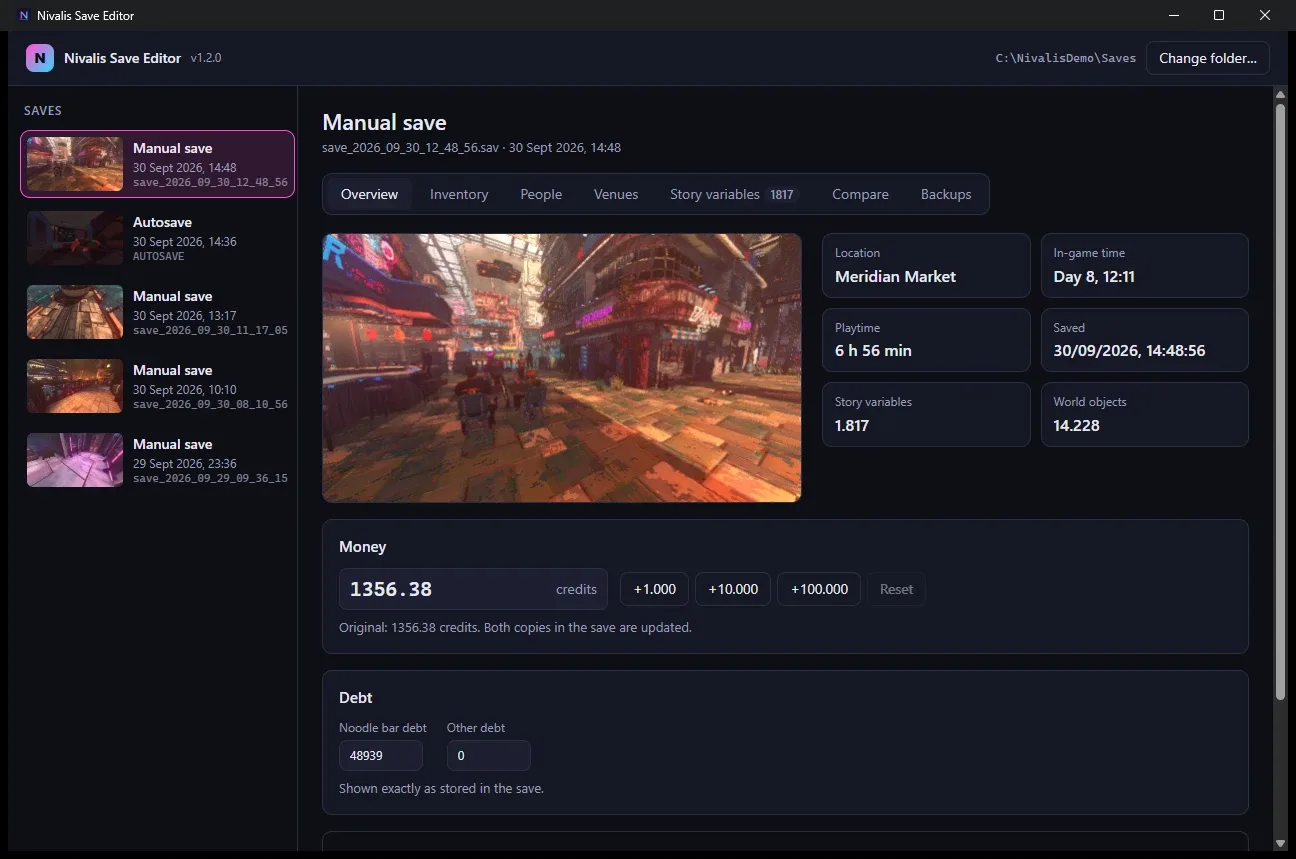
To use it, close Nivalis Nights, extract the editor archive to a separate folder, and run NivalisSaveEditor.exe. Select a save, make the intended change, and choose Save changes before loading that save in the game. The launch-era editor release was tested with save-format version 151 and is designed to refuse unknown save formats instead of writing them.
The executable is not code-signed. If Windows displays a security warning, stop and verify that the file is the intended download before deciding whether to run it. Do not weaken system-wide security settings for a save editor.
Use extra caution with story variables. These values can control quests, relationships, venue progress, and dialogue. Changing a flag without knowing its role can skip or break a quest step. Work on a copy of the save, change one value at a time, and check the result before making additional edits. Steam Cloud synchronization means the edited active save may replace its cloud copy.
Restoring and comparing Save Editor backups
The save editor can retain up to ten compressed backups for each save. Its first backup for that save is kept permanently, and the Backups tab can compare changes or restore an earlier state. These backups are stored outside the Steam Cloud save folder at:
%LOCALAPPDATA%\Nivalis Save Editor\Backups
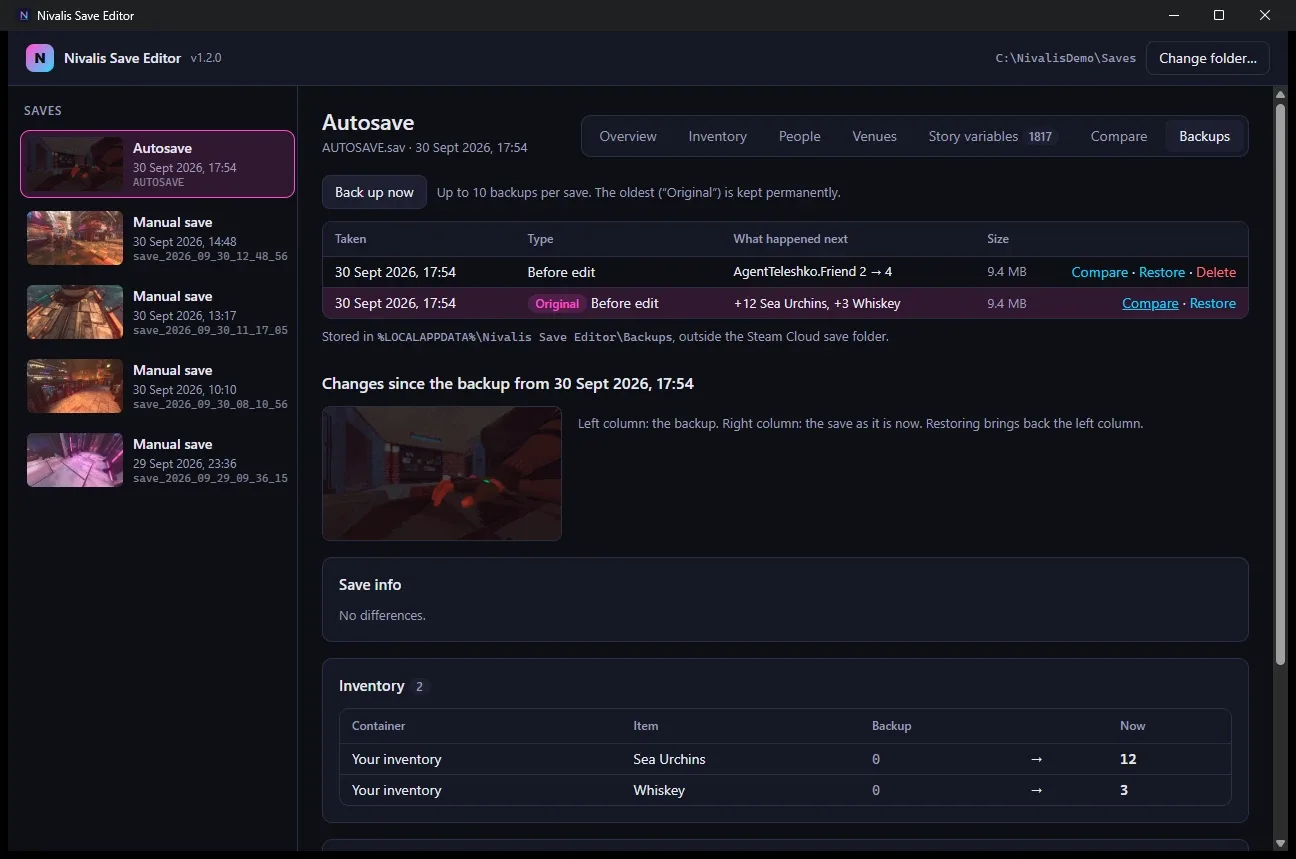
Before a risky edit, confirm that a backup appears in the Backups tab. After saving, compare the modified save against the earlier copy so that unexpected inventory, relationship, or quest-variable changes are visible. If the result does not behave as intended, close the game before restoring the backup.
The editor refuses to write while Nivalis Nights is running. Do not work around that protection. Keeping the game closed prevents the game and editor from attempting to update the same save simultaneously.
Diagnosing a mod that does not load
Start with the newest addition rather than reinstalling everything at once:
- Close the game and temporarily remove the latest plugin.
- Confirm that the unmodified game still launches and loads the backup save.
- Check that the mod supports the current game build or save format.
- Verify that BepInEx, MelonLoader, and the downloaded plugin variant match.
- Confirm the DLL’s exact final path instead of leaving it nested inside an extra archive folder.
- Check the relevant loader log for the plugin name and an explicit error.
- Remove other mods that alter the same system, such as a second clock or ingredient-selection plugin.
- Restore the original save if the problem began after a persistent trainer or editor change.
For Slow Days, keep only one NivalisSlowDays.dll and look in BepInEx\LogOutput.log for entries containing “Nivalis Slow Days” and “Clock active.” For FIFO, look for its loaded message. For the trainer, load a save before judging features that require save data; an unavailable feature immediately after a game update may indicate that the trainer needs an update.
If the base game remains damaged after removing a mod, use Steam’s Verify integrity of game files option. File verification can restore changed game files, but it does not undo values already written into a save.
A safe mod setup for the launch build
For the lowest-risk setup, begin with one focused plugin such as FIFO or one Slow Days speed. Confirm that it loads, use a copied save, and play long enough to observe the feature it changes. Add another plugin only after the first setup is stable.
Treat the trainer and save editor as higher-impact tools because they can permanently change progression data. Keep a clean save outside Steam Cloud before using either one. Manager Order Fix should be evaluated only for its stated duplicate-ordering correction, not as a complete repair for managers or shopping-list behavior.
Finally, recheck compatibility after every Nivalis Nights update. Disable outdated plugins before loading an important save, and wait for a mod-specific update when its listed game build or save format no longer matches yours.